sexta-feira, 23 de junho de 2023

Using report PP_MRP_SUPPORT to find the root cause of MRP issues

 I have worked for 8 years in SAP Product Support, specializing in resolving incidents related to Production Planning, particularly those involving Material Requirements Planning (MRP). Throughout those years, I encountered various challenging issues, such as ABAP short dumps, inconsistencies, and ambiguous MRP results caused by BAdI or exit implementations. Checking all the MRP settings and all the possible causes of an issue may take a long time and sometimes it requires a deep analysis in debug.

To simplify the troubleshooting process for MRP issues, SAP delivered SAP note 3199068 – Support-Tool for MRP, which introduces the new report PP_MRP_SUPPORT. This note is valid for all S/4HANA releases and, in the latest releases, the report will be automatically created with the latest support package. If you want to have the report immediately and you can’t wait for the support package, you can ask your system admin to manually implement it (Note: there manual steps to be performed before the note implementation).

Report PP_MRP_SUPPORT provides you an overview of the MRP settings, allowing you to quickly check the most important settings to troubleshoot an MRP issue. Let’s discuss in detail how you can use the report and all the report functionalities.


1 – Launching PP_MRP_SUPPORT 

Once report PP_MRP_SUPPORT is implemented in the system, you need to use transaction SE38 to launch it, as there is no standard transaction available to run it. In the selection screen there are three different sections: Material SelectionResult Options and Tools. We will first go through the first two and later explore each tool in detail.

Figure 1: PP_MRP_SUPPORT Selection Screen


In the Material Selection section we will provide the Material, Plant and the MRP Area that will be used as input parameters. This information is required, because the report shows the MRP settings from the material master and it can also show possible sources of supply.

In the Result Options section, we can select whether the report should show implemented BAdIs and User-Exits, if it should look for sources of supply for external procurement and production versions, and if it should search for existing MRP Jobs.

If we are using the selection for BAdIs and User-Exits, we can restrict the selection for package MD03, which is the package containing most of the MRP related BAdIs. If we don not restrict the selection, report will show all the BAdIs active in the system and we will need to look for the MRP BAdIs. Note: MRP Live AMDP BAdIs are no selected by this report.

The MRP Batch Job Settings will show all the MRP background jobs executed with report PPH_MRP_START or RMMRP000, within the timeframe selected.


2 – PP_MRP_SUPPORT Results

Now that we have explored the main selection parameters of report PP_MRP_SUPPORT, we will take a look into the results screen. Figure 2 shows the results of report PP_MRP_SUPPORT, where we can see the different tabs:

  • MRP 1 + 2: A combined view of tabs Material Master tabs MRP 1 and MRP 2.
  • MRP 3 + 4: A combined view of tabs Material Master tabs MRP 1 and MRP 2.
  • BAdI: Shows a list of the BAdIs belonging to the selected package that are implemented
  • User-exits: Shows a list of the user-exits belonging to the selected package that are implemented
  • MRP Jobs: Shows a list of the MRP jobs executed within the selected interval.
  • Sourcing: Provides a list of the sources of supply available for external procurement.
  • Prod. Versions: Provides a list of Production Versions available for the selected material.

PP_MRP_SUPPORT%20Results

Figure 2: PP_MRP_SUPPORT Results


Figure 3 shows details of the tab BAdIs, showing all the BAdIs implemented in packages MD*. Accessing all this information in a single place will speed up the resolution of problems in MRP and help consultants to easily find the root cause of issues.

BAdIs%20implemented

Figure 3: BAdIs implemented


3 – Tools

Coming back to the selection screen, as shown in Figure 1, we also have a side panel with buttons, where each button represents an additional tool that can be used to troubleshoot MRP issues. Figure 4 shows the tools bar and all the troubleshooting tools available.

Figure%205%3A%20Tools

Figure 5: Tools


The first button is MRP Consistency Check, and perhaps it is the most important, as it search for possible inconsistencies that might cause problems or short dumps during the MRP run. It will check, for example, if there is any risk of overflow in the number ranges used by MRP, if there are planning elements outside the factory calendar validity or if there is any inconsistency in MRP Areas. If the report finds an issue, we will see a red traffic light, and we can also click the line to see a message with the details.

Figure%205%3A%20MRP%20Consistency%20Check

Figure 5: MRP Consistency Check


The second button DBA Cockpit will call transaction DBACOCKPIT, which allows you to analyze any issues related to the database. You will need specific authorization to this transaction and some technical database knowledge to use it.

The third button MRP Customizing is a call to transaction OPP1, which opens the specific MRP customizing in transaction SPRO, and it is useful to check if there is any incorrect or missing customizing setting that can be causing issues in the MRP run.

Button Custom Code Analysis calls transaction /SDF/CD_CCA, which allows you to run checks in the custom code implemented in your system. With this transaction you can find any modifications implemented in standard code, run a quality check in custom code or compare a program with the code implemented in another system.

Settings for MRP Live shows and also allows you to maintain the MRP Live Technical Settings, which can be used to improve the MRP Live performance, parallelization and memory consumption. SAP Note 2003405 provides details about each one of these settings and how they can be used for an MRP Live fine tuning.

Figure%206%3A%20MRP%20Technical%20Settings

Figure 6: MRP Technical Settings


Finally, button Details for Materials in MRP on HANA calls transaction MD_MRP_FORCE_CLASSIC, bringing a list of materials that were planned in MRP Live and the provides details about the planning run, like if there was any issue during the planning run, if the material was planned in HANA or ABAP and the date of the last planning run.


4 – Conclusion

This report brings all the information relevant to troubleshoot an MRP issue in a single place, and it can be used as starting point to analyze any issue with MRP. In a single report we can have an overview of the material master settings, customizing, jobs executed, enhancements implemented and so on.

Besides all this information, the MRP Consistency Check is a great tool, which implemented automated checks that we had to perform manually in the past, in order to avoid or resolve any issue. This consistency check can be used not only for troubleshooting issues, but it can also be part of the MRP housekeeping activities, helping companies to prevent issues with MRP before they happen. 


Brought to you by the SAP S/4HANA RIG and Customer Care team.


Source: https://blogs.sap.com/2023/06/22/using-report-pp_mrp_support-to-find-the-root-cause-of-mrp-issues/

segunda-feira, 19 de junho de 2023

Kanban Replenishment with SAP EWM-One Step Stock Transfer


Purpose:

The purpose of writing this blog is to describe how the replenishment of Kanban materials are carried  out in a business process where there is one Storage location which is EWM managed. This process is called One Step Stock transfer where source and destination storage location is EWM managed. The warehouse and production storage location is in same premise, so we can carry out One step stock transfer.

Definition:

Kanban is a procedure for controlling production and material flow based on the physical material stock in production. Material that is required on a regular basis is continually kept available in small quantities in production. With Kanban, the replenishment or production of a material is triggered only when a certain quantity of the material has been consumed. This replenishment is triggered directly by production .


Overview:

An attempt is made to replicate the scenarios  given in help.SAP how the staging process is conducted in EWM managed warehouse.

https://help.sap.com/doc/a1af34cbfcf04c3d9eea9abfa6a43f09/1610%20000/en-US/0873d1d939e740f69d504bd68314bc10.html

Customization required:

  1. Define delivery type Determination
Logistics Execution–>SAP EWM Integration–>Production Planning and Control–>Define Delivery Type Determination


2) Define stock Transfer Strategies:

Production–>Replenishment Strategies—>Define Stock Transfer Strategies


3) Define Interface to Inventory Management and Delivery relevant data

Logistics Execution–>Decentralized WMS Integration –>Central Processing–>Application–> Define Interface to Inventory Management and Delivery-Relevant Data

Here, we need to map the IM movement type to WM reference movement type and assign the plant which is created as Customer and Vendor. Since in EWM we dont have material documents so, it is required to create Plant as customer and vendor to communicate with Outbound delivery(Customer) and Inbound delivery(Vendor). When customer and vendor is CIFed in EWM, they become Business partners which unique CRM identification number CRM004 and CRM002.


It is mandatory to assign ERP warehouse to ship to part and vendor and with other sales data to create outbound delivery when Kanban container becomes ”Empty”


4)  Map storage locations from ERP system to EWM

Extended Warehouse Management—> Interfaces–>ERP Integration–> Goods Movements–> Map Storage Locations from ERP System to EWM


Here, it is mandatory to mention the ERP plant, ERP storage location with Logical system. EWM doesnt work with storage location as stock in EWM is available in LIME(Logistics Inventory Management Engine, so there is something called as Availability group which technically is a storage location in EWM. And party entitled to dispose is technically Plant in EWM which is created in EWM after CIFing of Plant from ERP.


5) Determine Stock type in EWM

With the stock type, you determine the status and therefore the availability of a stock within LIME.

SCM Basis –>Logistics Inventory Management Engine (LIME)–> Basic Settings –>Application-Specific Settings–>Determine Stock Type


6) Assign EWM stock type to Availability Group 002. Since we have just one storage location in ERP, so it will also be only 1 Availability group in EWM. N:N ratio


7) Define storage types.


I have created 3 storage type 1001 Production, 5001 and 5500. 1001 will be the destination storage type and 5001 and 5500 are the stock removal storage types hence it is mandatory to have stock available in these 2 storage types.


8) Define staging areas

Extended Warehouse Management–>Master Data–>Staging Areas–> Define Staging Areas


9) Warehouse Process types

Extended Warehouse Management–> Cross-Process Settings–>Warehouse Task–> Define Warehouse Process Type


4100 is the warehouse process type to stage the Kanban materials from source to destination Bin. It is mandatory to keep the Posting change Bin value as 2, because there is only 1 storage location which is EWM managed, so for transfer posting is withing the same sloc, a posting change document is created which will be replicated as Posting change delivery in EWM. The value as 2 will create a Warehouse task with reference to posting change delivery in EWM system


11) Determine Warehouse types.

Extended Warehouse Management -> Cross-Process Settings -> Warehouse Task -> Determine Warehouse Process Type

WPT 4100 will be determined to trigger PICK with FIFO rule.

Master data required.


  1. Create a  Production supply Area in ERP, PK05.


2) Create a Control cycle for Kanban, PKMC,

Mention the supply area, Warehouse number ERP, no of kanban and containers.


Assign the storage location and supply area in control cycle.


Assign stock transfer Strategy


3) CIF the material into EWM system CFM1/CFM2


Product is replicated to EWM system now.


4) Replicate PSA in EWM


5) Create storage Bins in EWM: /SCWM/LS01

6) Define PSA in EWM: /SCWM/PSA


Process Steps

  1. Display Kan ban board by PK13N and check the status of Containers.

There containers with Wait and Full status.


2) Pick 003 Container and click on Empty. Once it is emptied, the color changes to Red as below


3) Click on 003 Kanban Card, and outbound delivery is generated.


4) Check the delivery, delivery is created with Movement type 411 and it is distributed to EWM system


Delivery is created with item category DOGN and delivery type DOG with status as ”B” meaning it is replicated to EWM system for picking.


5) Check the Posting change delivery in EWM:

/SCWM/IM_PC – Delivery Processing -> Posting Change -> Maintain Posting Change


6) Create Warehouse Task by follow on function. Click on create+save button.

Warehouse order will be generated


7) Check the Warehouse order in Monitor screen. /SCWM/MON


WO is confirmed, menaing material is staged to Production supply Area.


8) Check the Status of Delivery in ERP.

411 transfer posting is successfully executed in ERP through PPF action from EWM


9 Check the status of Kanban card in ERP, it will be in Full state now in Green


Material document is also created in ERP which means Materials is replenished in PSA


Hence the replenishment of Kaban with one step stock transfer is successfully done. There are more scenarios like 2 step Stock transfer when Warehouse and Production locations are practically separated and are not in same premise or far away. In this case, stock in transit is necessary to show in Kanban board.

Here the topic end. I would wait for any correction or improvement required for this blog.

In the upcoming blogs I will write on Batch management in EWM with Inbound and Outbound process, Advance Production Integration and Classic delivery based Production scenarios.

Best regards

Shailesh Mishra

Source: https://blogs.sap.com/2018/08/07/kanban-replenishment-with-sap-ewm-one-step-stock-transfer/
domingo, 18 de junho de 2023

What Is the Difference Between Moving Average Price and Standard Price in SAP?

 In any SAP system (SAP ERP or SAP S/4HANA), there are two basic types of price control for materials: moving average price and standard price. In this blog post, we’ll discuss the differences between the two.


There are a few complex scenarios in which you could be purchasing different types of materials and dealing with goods receipts or invoice receipts in an SAP system. General ledger (GL) accounts are posted differently in the different cases, and the sequence of goods receipt and invoice receipt also increases the complexity. Sometimes, a big challenge that a finance team faces is to understand the financial document entries in the long purchase order (PO) history, and communicate them with other business teams. It is also a challenge to consultants to explain system logic to finance teams in such scenarios.


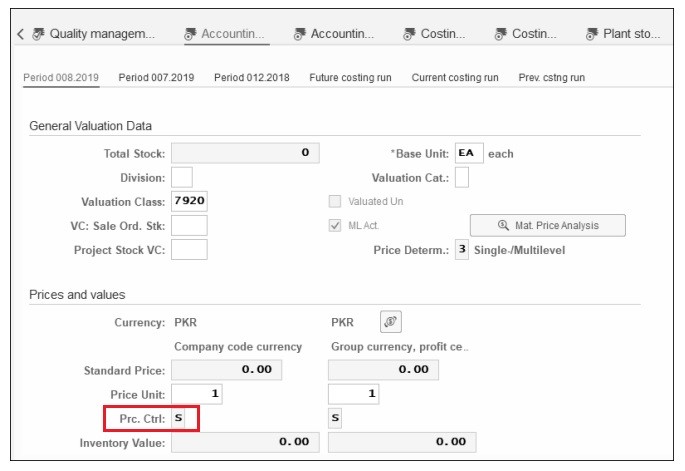
Accounting screen

Before getting into too many details, let’s first discuss what their different meanings are.


Moving Average Price

Moving average price is an inventory costing method where the average price is calculated after obtaining the goods. The average cost of each inventory item in stock is re-calculated after every inventory purchase.


To calculate it, you would use this formula:


Moving Average Price = (Products On Hand Value + New Products Value) / Total Number of Products


The moving average price is a constantly recurring calculation, which could potentially change with each invoice or goods receipt.


Standard Price

Standard price is a predetermined price, and both receipts and issues will be valued at this price. It also remains constant for a certain amount of time, such as a quarter, a month, or some other timeframe. This method follows the standard costing technique of accounting, or the practice of substituting an expected cost for an actual cost in the accounting records. Subsequently, variances are recorded to show the difference between the expected and actual costs. Compared to collecting actual costs, standard costs could be used as a close approximation to actual costs and would have significant accounting efficiencies.


In the common practice, raw materials use the moving average price and semi-finished/finished products use the standard price.


If either the moving average price or standard price method is selected in the material master record, the SAP system just follows the accounting rules to do the inventory cost postings. The logic itself of moving average price or standard price is mainly the SAP standard function. Meanwhile, the system still needs some basic MM-FI integration configurations for GL accounts.


Example

Let’s take a look at an example of how the SAP system proceeds using the moving average price.


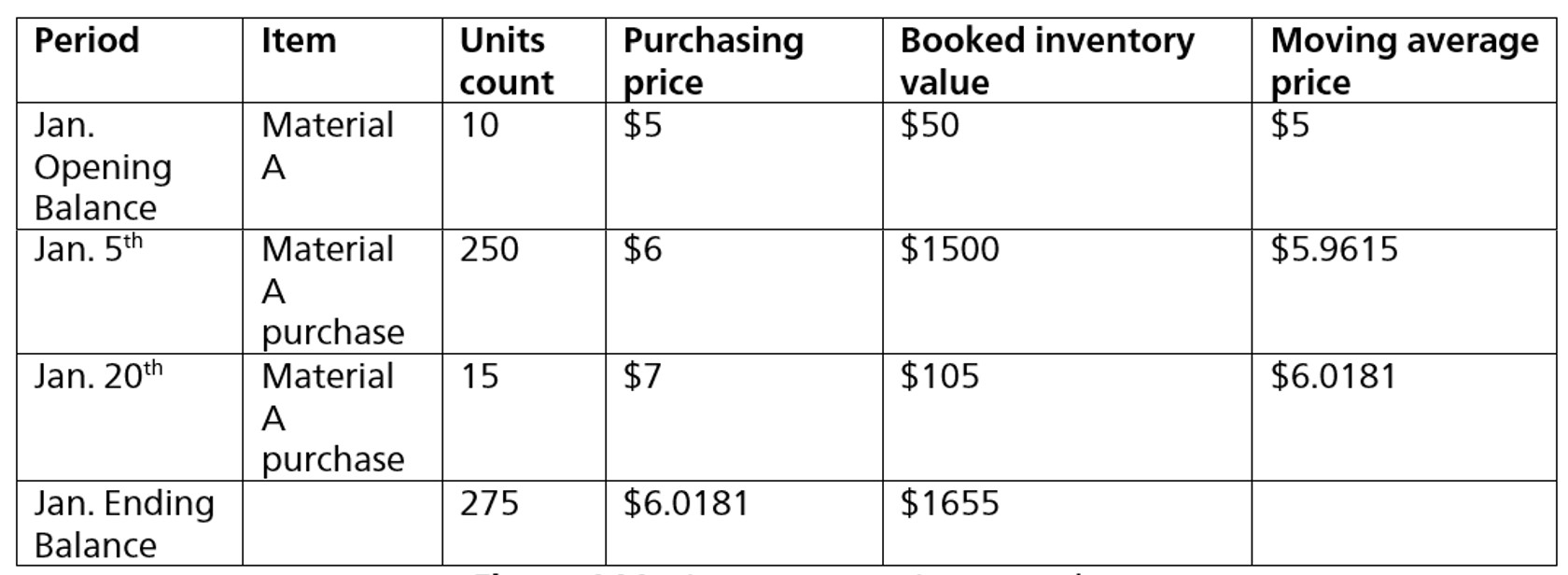
Moving average price example


When the “V” value is selected in the price control field of the material master record, the system will use the moving average price method for this material. In the figure above, purchasing prices are different in each acquisition. The system would post an inventory balance based on each purchasing price, and update the latest moving average price in the material master record. Total stock and total value are also updated accordingly. Since goods issues are usually valued with the current moving average cost, they do not normally affect the inventory cost.


Compare this to the standard price example below.


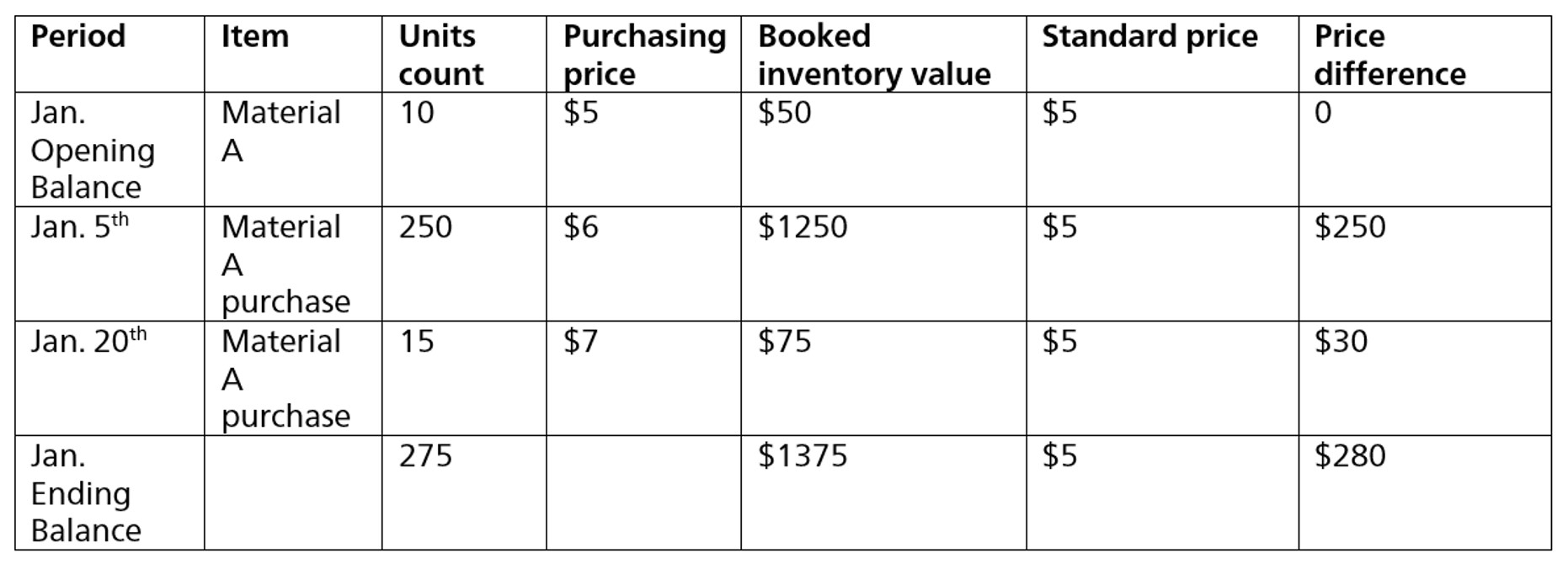
Standard price example

**Booked inventory value = Standard Price * Units count

**Price difference = (Purchasing price – Standard price) * Units count


When the “S” value is selected in the price control field of the material master record, the SAP system will use the standard price method for this material. As shown in the standard price table above, even when purchasing prices are different, the system always uses the fixed standard price to post inventory balance in the given period. The differences between purchasing price and standard price are posted to a price difference account. Total stock and total value are also updated by standard price in material master record. In this case, goods issues are usually valued with the standard price.


Business Scenarios

Now, let’s get into detail about some business scenarios in the PO purchasing process, showing the differences between moving average price and standard price.


Let’s discuss moving average cost scenarios first. Moving average cost mainly has two scenarios, which are material with moving average price (MAP) with stock coverage and material with MAP without stock coverage.


Material with MAP with Stock Coverage

The business background: At the beginning of its January 1st fiscal year, a company reports a beginning inventory of 100 units at a cost of $1.20 per unit. Over the first quarter, the company purchases of 100 units at a cost of $1.30 on January 15th. The invoice shows $140 total amount.


The PO unit price is $1.30 and the PO quantity is 100 pieces. Depending on the sequence of goods receipt (GR) and inventory receipt (IR), the double entry of financial documents would be a little different. The material with “V” value in the price control field has a moving average price of $1.20/piece initially.


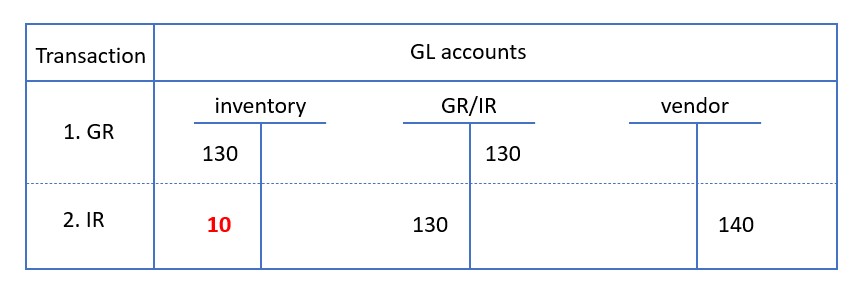
If the earlier than the invoice receipt, GR posts an inventory balance based on the PO unit price. The stock adds 100 pieces. Then, the company receives the invoice. The IR posts a total of $140 to the vendor account in the credit side. The GR/IR clearing account is cleared based on the purchase order price. The total variance $10 between the PO price and invoice price is posted to the debit side of the inventory account. Then the total balance of inventory is $140. The figure below shows the full document double entry in the GR and IR posting steps.


Double entry


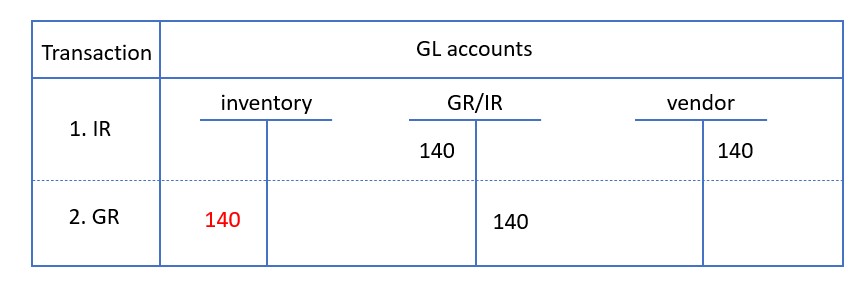
If the invoice receipt is posted before the goods receipt, the invoice price becomes the basis for the posting. The goods receipt that follows is posted with the value posted at the invoice receipt.


In this case, IR posts the invoice total amount of $140 to the vendor account and GR/IR account. Then, the company receives the goods and posts $140 to the inventory account with the invoice price. The GR/IR account is also cleared with the invoice price. The total balance of inventory is also $140. This figure shows the full document double entry in the IR and GR posting steps.


Double entry


Material with MAP without Stock Coverage

If the stock of a material is less than the quantity specified in the invoice because goods were withdrawn between GR and IR, the stock account is only debited or credited for the actual stock. The remaining amount is posted to a price differences account.


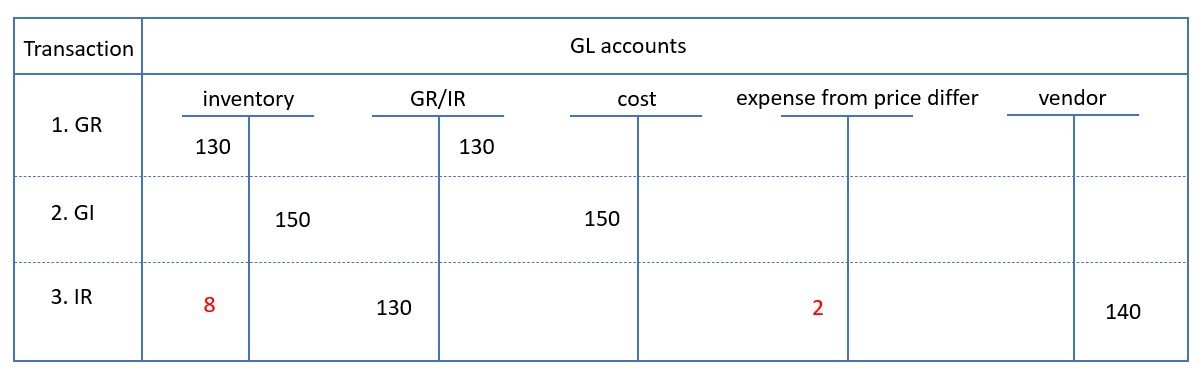
Suppose the general business background is the same as the above and is using the moving average price. The only difference in reporting is that there is a goods withdrawal with quantity 120 pieces from the total quantity of 200 pieces between GR and IR. The latest moving average price is $1.25 at the time of this withdrawal. $150 is posted to the credit side of inventory. The $10 variance between the PO price and invoice price is divided into two parts. Since only 80 pieces of the material are in stock at the time of invoice receipt, the price difference is debited with $8 to the material for 80 pieces only. The remaining $2 is posted to expense from price difference. This figure shows the full document double entry.


Double entry


Standard Price Scenario

Let’s keep the same business scenario using the standard price option. The difference is that the price control of the material selects the “S” value, which uses a standard price of $1.20/piece initially.


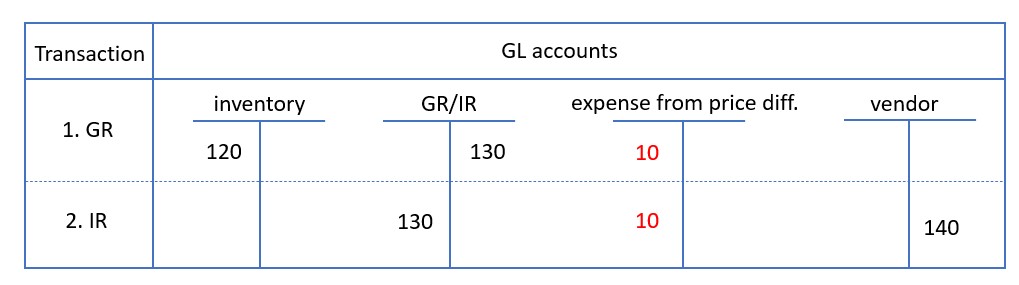
As shown in the figure below, GR comes before IR. The GR posts inventory with the standard price, while GR/IR is posted based on PO price. The variance of $10 between GR and PO price is posted to expense from a price difference account. Then, IR posts the total invoice of $140 into the vendor account. GR/IR is cleared based on PO Price. The variance of $10 between the IR and PO price is posted into the debit side of expense from the price difference account.


Variance


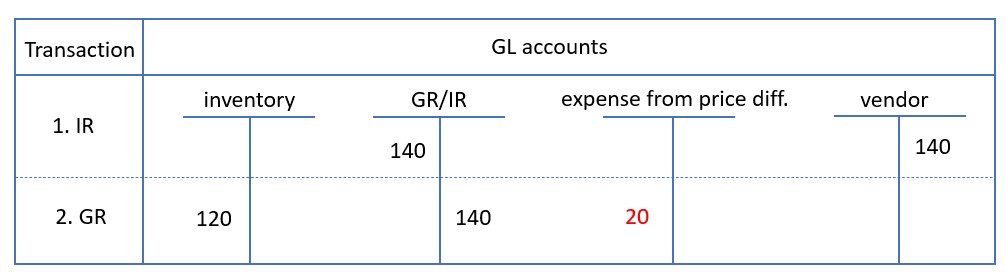
As shown in the final figure, IR comes earlier than GR. IR posts the total invoice of $140 into vendor account. GR/IR is then posted based on invoice price. Then, GR posts inventory with the standard price. GR/IR is cleared based on the invoice price. The variance of $20 between the IR price and standard price is posted into the debit side of expense from the price difference account.


In other cases, if the PO price is less than standard price, or the invoice price is less than the PO price, revenue account from price difference would be posted instead of expense from price difference.


Reverse Account


Conclusion

Inventory cost calculation in SAP S/4HANA is a fundamental piece of functionality that can help companies manage inventory well. It is important to have a deep understanding of the scenarios based on the sequence of goods receipt and invoice receipt. In this post, we talked about the two basic types—moving average price and standard price—and how they behave in an SAP system.


Source: https://blog.sap-press.com/what-is-the-difference-between-moving-average-price-and-standard-price-in-sap